Driver Experience FAQ
What is "driver experience" and why do you need it?
Driver experience is your verifiable history driving for another rideshare or delivery platform — typically Uber or Lyft. We use it to confirm you've actively been a rideshare driver, which speeds up onboarding and helps us match you with the right ride types from day one.
If you're brand new to rideshare, that's fine — see I'm new to rideshare. What do I submit? below.
What do you need to see?
A screenshot from your driver app (or your public driver profile) that clearly shows:
- Your total trips or rides count — proof that you've been driving
- How long you've been on the platform — months or years active
- The platform name — so we can confirm it's Uber or Lyft, not another service
Personal details like your name, photo, or rating do not need to be visible. Feel free to crop or blur them if you'd prefer.
How do I capture the right screenshot?
Uber drivers (in-app)
- Open the Uber Driver app
- Tap Menu (☰ bottom right)
- Tap your name / profile at the top
- Scroll to Lifetime highlights
- Screenshot the section showing Total trips and Journey with Uber
You can also screenshot Rides and Deliveries if both are visible.
📎 See: 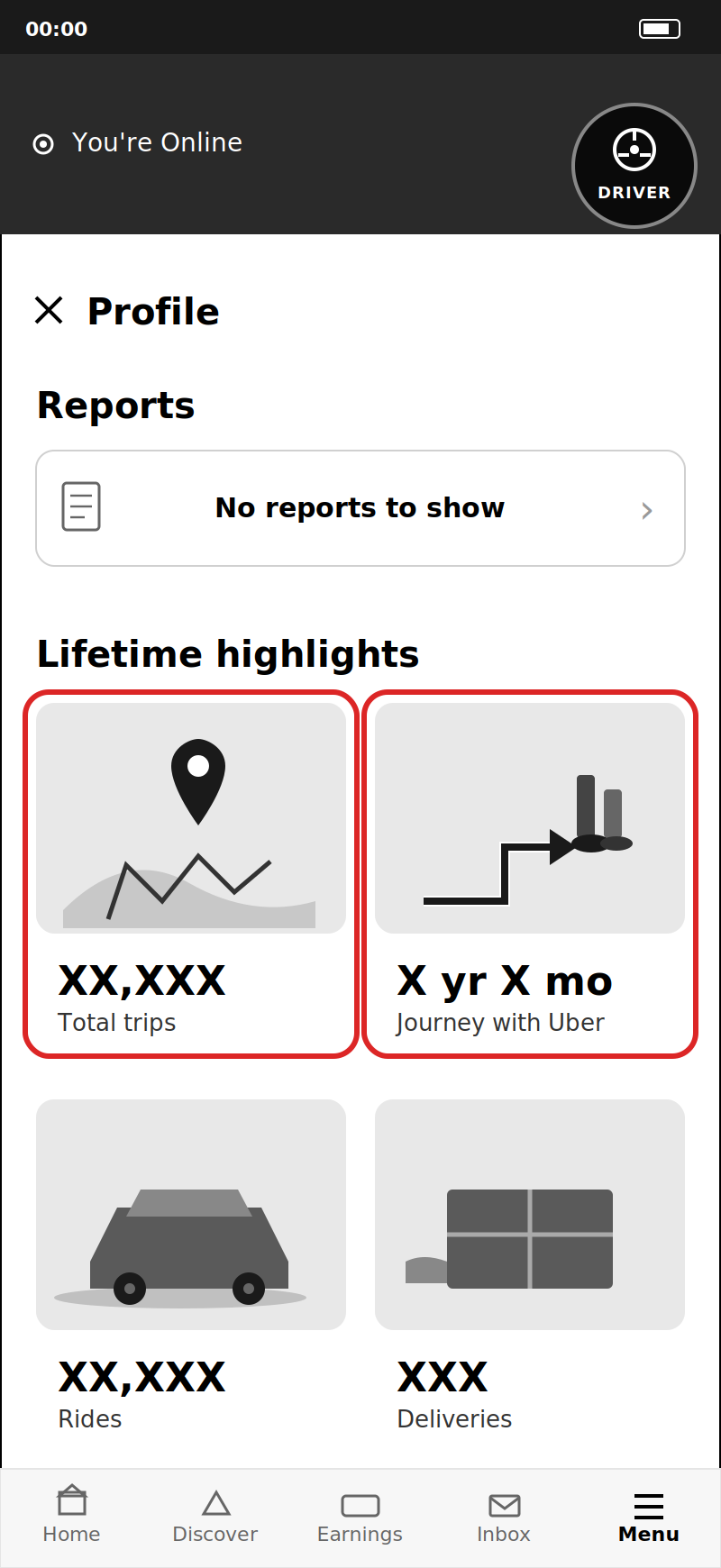
Uber drivers (public profile, rider-facing)
If your driver app doesn't show lifetime stats, use your rider-facing profile:
- In the Uber Driver app, tap Menu → Profile → View as rider
(Or have a passenger screenshot your profile during a trip) - Screenshot the section showing trips over X years under your name
📎 See: 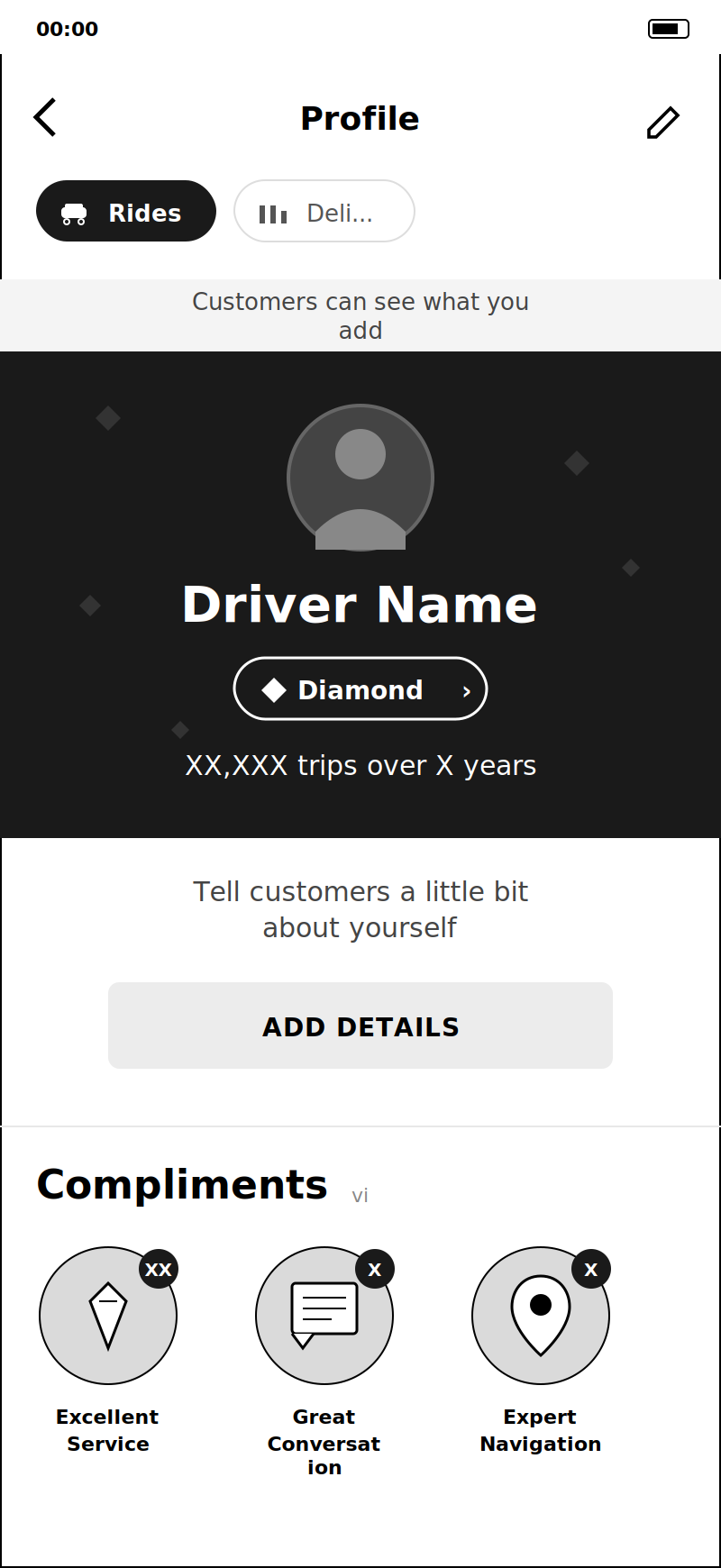
Lyft drivers
- Open the Lyft Driver app
- Tap Menu (☰)
- Tap your profile photo at the top
- Screenshot the stats card showing Rides, Rating, and Months
📎 See: 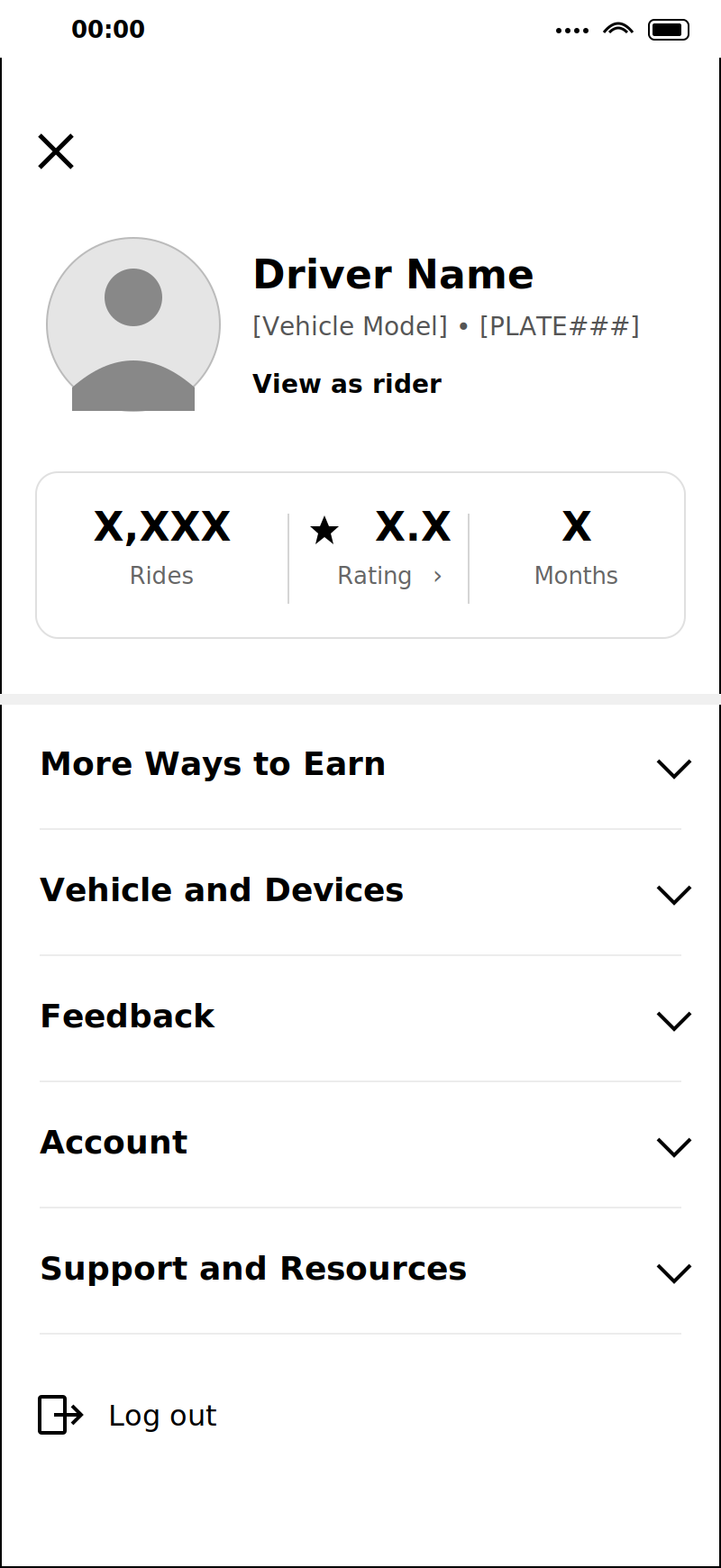
Common questions
I drive for both Uber and Lyft. Do I need to submit both?
No — one is enough. Submit whichever shows more trips or a longer history.
Can I submit a screenshot from another rideshare
Currently we accept Uber, Lyft and Hopp screenshots. If you drive for a platform not listed, contact support and we'll let you know what's acceptable.
My screenshot doesn't show my total trips clearly. What do I do?
Try the public/rider-facing profile (Uber: View as rider). It usually shows lifetime trips in larger, more prominent text.
Why was my driver experience screenshot rejected?
The most common reasons:
- Numbers not visible. The total trips or rides count was cropped, blurred, or unreadable.
- No platform identifier. We couldn't tell which app the screenshot came from.
- Wrong section. The screenshot showed your earnings, schedule, or trip history rather than your lifetime profile/highlights.
- Screenshot appears edited. Numbers look altered or inconsistent with the rest of the screen.
If your submission was rejected, just retake the screenshot following the steps above and reupload.
Need help?
Reach out via the Help section in the HOVR Driver app, or email Support@ridehovr.com with your application reference number.